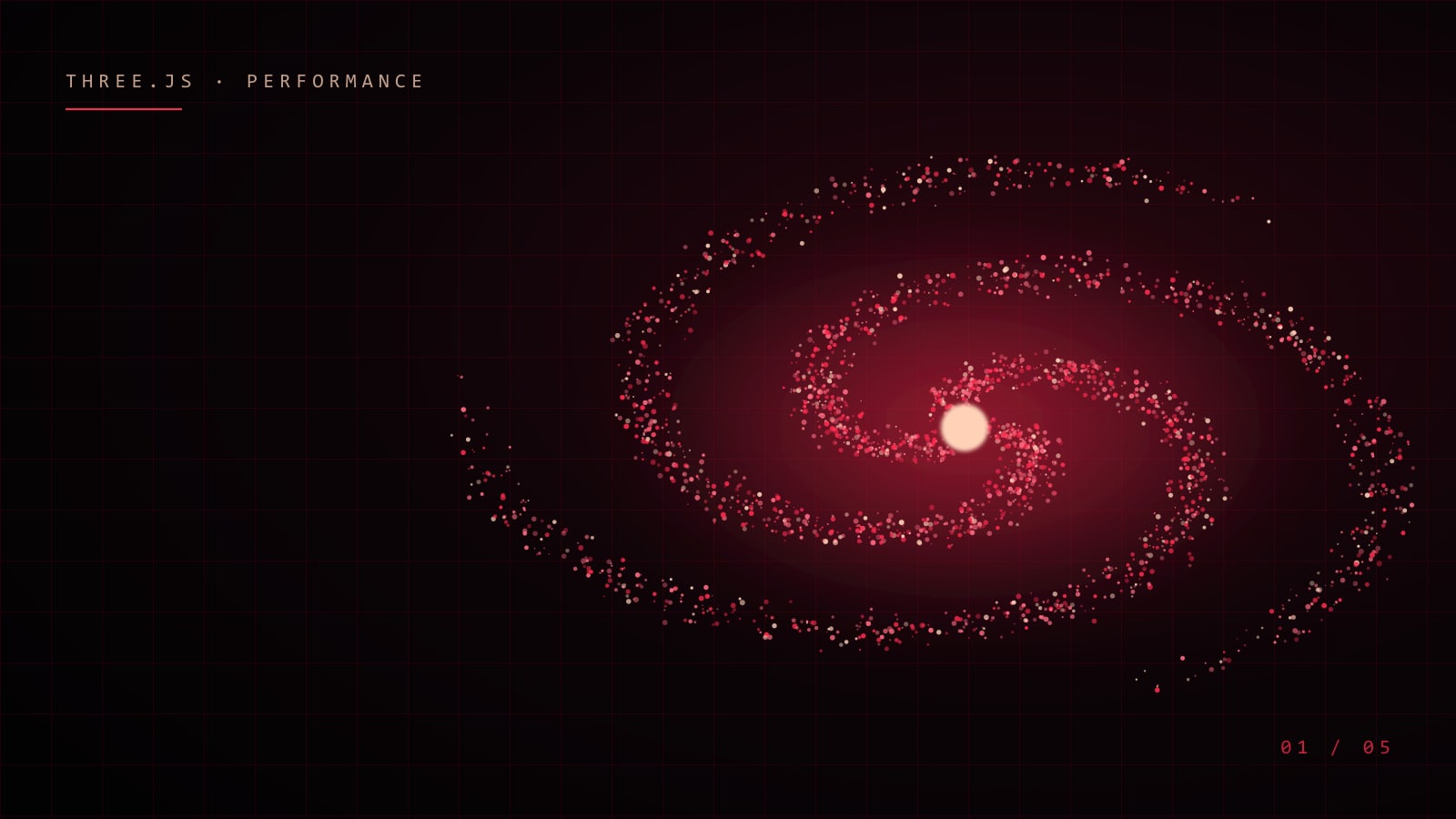
A Three.js scene that runs at 120 fps on a desktop GPU can drop to 20 fps on a three-year-old laptop and turn a phone into a hand warmer. When the 3D is the first thing a recruiter or customer sees, that is not a small bug: it is the first impression. Here is the playbook I use to keep WebGL scenes smooth across very different devices.
Measure before you optimise
Guessing is the most expensive optimisation technique. Before changing anything, find out where the frame time actually goes:
- Draw calls:
renderer.info.render.callstells you how many times the CPU talked to the GPU last frame. Hundreds of calls is usually the problem on low-end machines. - Pixels: fill rate grows with the square of the device pixel ratio. A 1440p screen at DPR 2 is over 14 million pixels per frame.
- Main thread: the Performance panel in Chrome DevTools shows whether a hitch is JavaScript (long tasks), shader compilation, or the GPU.
One draw call beats a thousand
The biggest win is almost always fewer draw calls. A particle field built from 24,000 separate meshes is unusable; the same field as a single THREE.Points with a custom shader is cheap. When you need many copies of the same geometry, reach for InstancedMesh. When shapes differ, merge static geometry with BufferGeometryUtils.mergeGeometries.
Animation can live on the GPU too. Instead of updating thousands of positions in JavaScript every frame, store several target shapes as attributes and blend between them in the vertex shader with a few uniforms:
attribute vec3 aGalaxy;
attribute vec3 aHelix;
uniform float uMix;

void main() {
  vec3 pos = mix(aGalaxy, aHelix, uMix);
  gl_Position = projectionMatrix * modelViewMatrix * vec4(pos, 1.0);
  gl_PointSize = 2.0;
}
Now a morph between two shapes costs one uniform update per frame, not 24,000 attribute writes.
Cap the pixel ratio
Rendering at the full device pixel ratio looks crisp, but most scenes, especially soft particles and glows, are indistinguishable at 1.5× and far cheaper. In React Three Fiber this is one prop:
<Canvas dpr={[1, 1.5]} gl={{ antialias: false, powerPreference: "high-performance" }}>
  <Scene />
</Canvas>
Turning off antialiasing is another quiet win for point clouds and additive effects, where jagged edges simply do not exist.
Pick a quality tier per device
There is no single “right” particle count. I pick a tier on load from a few cheap hints, then let the scene adapt:
type Tier = "low" | "mid" | "high";

function detectTier(): Tier {
  const cores = navigator.hardwareConcurrency ?? 4;
  const memory = (navigator as { deviceMemory?: number }).deviceMemory ?? 8;
  const small = window.innerWidth < 768;

  if (cores <= 2 || memory <= 2) return "low";
  if (small || cores <= 4) return "mid";
  return "high";
}
Each tier maps to a particle count, a DPR cap and whether heavy assets such as a large GLB model load at all. The GPU name from WEBGL_debug_renderer_info is a useful extra hint for spotting software renderers and weak integrated chips.
Adapt at runtime
Hints are guesses, so I back them with real measurements. Every couple of seconds the render loop checks the average frame rate. If it stays below a threshold, it steps quality down: fewer particles via geometry.setDrawRange, and a lower DPR. Two details matter:
- Shuffle the draw order once with an index buffer, so trimming the draw range thins every shape evenly instead of deleting whole sections.
- Ignore frames where the tab is hidden or a single frame took a quarter of a second. Those are hitches, not steady load.
Hide shader compilation
The first time a material renders, its shaders compile, and on Windows that can block for well over 100 ms. If that first render happens mid-scroll, users feel a stutter. Render every canvas once while the preloader is still visible (for example with frameloop="demand", which draws a single frame on mount) so compilation is paid for up front.
Do not forget the DOM
WebGL is rarely the only cost on the page. Large elements with backdrop-filter: blur() that move or tilt every frame can be more expensive than the 3D scene behind them. Pause those effects during big transitions, avoid permanent will-change on huge sections, and keep full-screen blend-mode overlays to a minimum on weak devices.
Checklist
- Count draw calls and pixels before optimising.
- Batch:
Points,InstancedMesh, merged geometry. - Move per-vertex animation into shaders.
- Cap DPR and skip antialiasing where it does not show.
- Choose a tier on load, then adapt to measured FPS.
- Compile shaders behind the preloader.
- Treat CSS blur and overlays as part of the frame budget.
None of these tricks are exotic, but together they are the difference between a demo that impresses on your machine and a site that impresses on everyone’s.
Leave a Reply