Category: Blog Cat

  • Remote Work, Done Right: 8 Rules for Real Results

    Remote Work, Done Right: 8 Rules for Real Results

    Remote work is not “office work, but in pyjamas”. If you treat it that way, it will quietly eat your focus, your evenings and your sanity. If you treat it as its own discipline, it is the most productive way I have ever worked.

    I have worked remotely with teams across Iran, Spain, Türkiye, Oman and Germany, across time zones, languages and very different internet speeds. Here is the playbook. No fluff. No “just stay motivated!”. Rules that work.
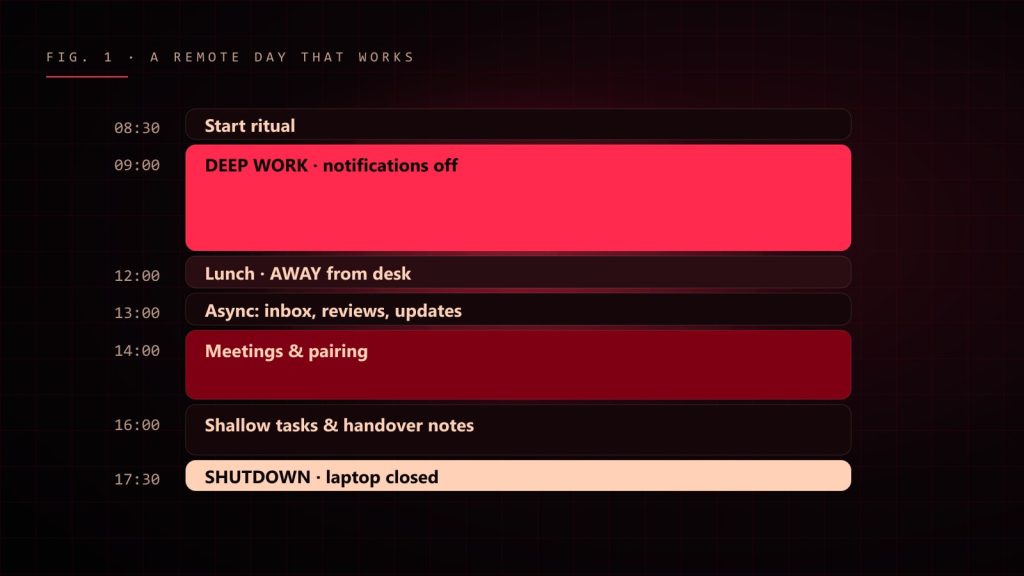
    Timeline of a productive remote day from start ritual to shutdown
    A remote day that actually works. Notice the lunch break is not at the desk.

    Rule 1: Own your schedule, or it will own you

    No commute means no natural start and end to your day. Without one, work leaks into everything: breakfast, dinner, that moment you were supposed to be watching a film.

    • Start at a fixed time. Same time every day. Your brain loves a routine.
    • Block deep work first. Two to three hours of focus, before Slack wakes up. Protect this time like your salary depends on it, because it does.
    • End with a shutdown ritual. Write tomorrow’s top three tasks, close every tab, say “done” out loud if you have to. Then close the laptop.

    Rule 2: Over-communicate. Then communicate a bit more.

    In an office, people see you working. Remotely, if you don’t write it, it didn’t happen. Silence looks like “stuck” or “slacking”, even when you are doing your best work.

    • Post a short daily update: what you did, what’s next, what’s blocking you.
    • Say “I’m stuck” early. Two hours stuck in silence is a waste. Ten minutes stuck and a quick question is teamwork.
    • Write complete messages. Not “hi” and then wait. Hi + context + question + deadline, in one message.

    Remote golden rule: write every message so that someone in another time zone can act on it without asking you a single follow-up question.

    Rule 3: Default to async. Meet on purpose.

    Meetings are the most expensive thing in a remote team. Five people for an hour is five hours of focus gone. Most “quick syncs” should be a written message, a short video or a comment in the ticket.
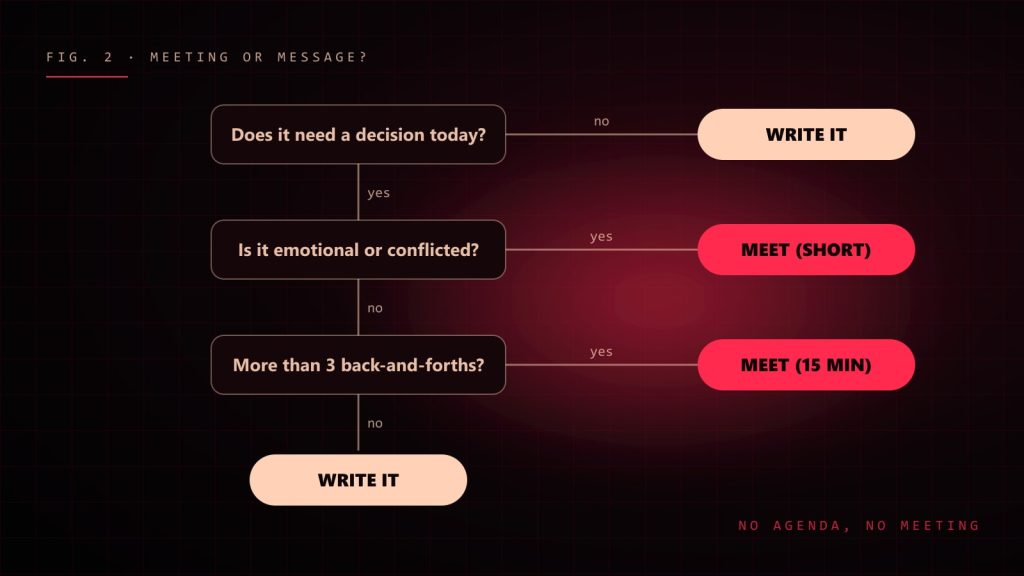
    Flowchart deciding between writing a message and holding a meeting
    Before you send that meeting invite, run it through this. Most things are a message.

    Meet when you need to decide something hard, resolve a conflict or build trust. And when you do meet: agenda first, notes after, decisions written down. No agenda, no meeting.

    Rule 4: Build a workspace you’d actually want to sit in

    Your kitchen table is not an office. Your bed is definitely not an office. Your back will send you an invoice for every month you pretend otherwise.

    • A real desk at the right height, ideally one you can stand at too.
    • A proper chair, an external monitor at eye level, a decent headset.
    • Good light, preferably daylight from the side, not behind you.
    • A door, if you have one. Closing it is your commute.

    Yes, I build desk configurators for a living. Yes, I am biased. I am also right.

    Rule 5: Measure output, not hours

    Nobody cares how long your status was green. They care what shipped. Set clear goals for the week, deliver them, show them. Teams that judge remote people by “online time” get people who are online and doing nothing. Teams that judge by results get results.

    Rule 6: Respect time zones like they’re law

    • Put your working hours in your profile and calendar.
    • Schedule messages instead of pinging people at 11 p.m. their time.
    • Rotate meeting times so the same people don’t always take the 7 a.m. call.
    • Write handover notes at the end of your day so work keeps moving while you sleep.

    Rule 7: Fight loneliness on purpose

    Remote work can get lonely, fast. You will not notice until it’s a problem. So plan against it:

    • Have a non-work chat channel and actually use it. Pets, food, terrible jokes.
    • Do the occasional camera-on coffee chat with no agenda.
    • Work from a café or coworking space once a week.
    • Have a life outside the screen: sport, friends, a hobby. This is not optional.

    Rule 8: Guard your focus like a dragon guards gold

    • Turn off notifications during deep work. All of them.
    • Batch your inbox and chat into a few slots a day.
    • One task at a time. Multitasking is just doing several things badly in parallel.
    • Phone in another room. I know. Do it anyway.

    The remote cheat sheet

    1. Fixed start, real shutdown.
    2. Deep work before chat.
    3. Write it down, or it didn’t happen.
    4. Async by default, meetings with agendas.
    5. A proper desk setup. Your body is not a beta tester.
    6. Output over online time.
    7. Time zones are sacred.
    8. Stay human: people, movement, daylight.

    Remote work rewards discipline and punishes drifting. Get the rules right, and you get the best of both worlds: deep focus, real results, and lunch in your own kitchen. Just not at your desk.
  • How to Find a Good Hobby as a Programmer (That Isn’t More Code)

    How to Find a Good Hobby as a Programmer (That Isn’t More Code)

    Here is a typical developer evening: you close your work laptop after eight hours of screens, walk two metres, open your personal laptop, and relax by… writing more code. Then you watch a video about code. Then you scroll through other people’s code on social media. Then you dream about a bug.

    Sound familiar? You might need a hobby. A real one. One that does not end with npm install.

    Why programmers need hobbies (seriously)

    This is not just “have more fun”, although fun is great. A good hobby makes you a better developer:

    • It gives your brain background-processing time. Some of my best solutions arrived while doing something completely unrelated. The brain keeps working on problems when you stop staring at them.
    • It protects you from burnout. If your whole identity is your job, one bad sprint can ruin your whole month.
    • It reminds you what learning feels like. Being a beginner at something again makes you more patient with junior teammates, and with yourself.
    • It fixes your back. Your spine was not designed for twelve hours a day in a gaming chair, no matter what the RGB lights promise.

    The hobby matrix

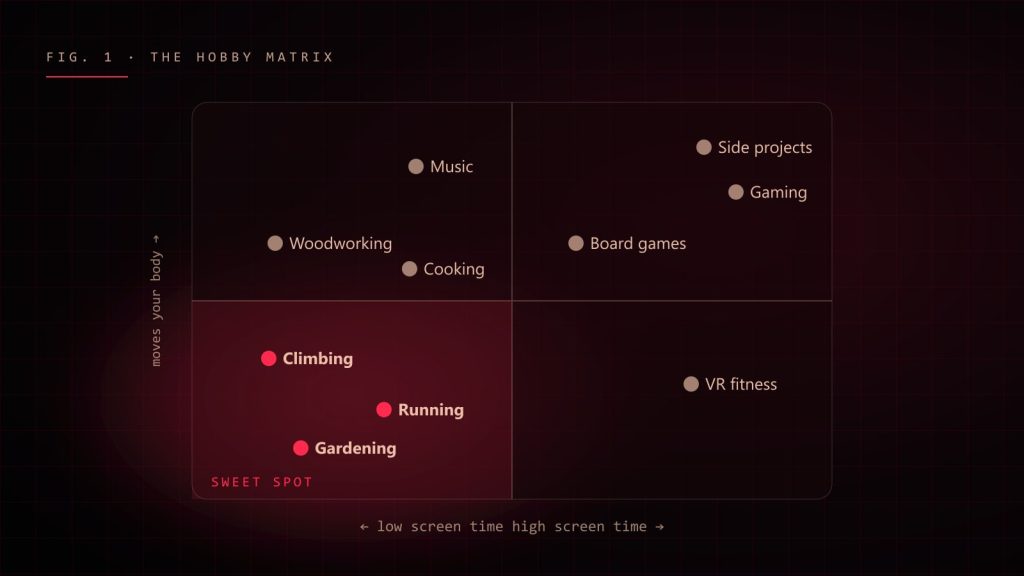
    The trick is to pick something that balances what your job lacks. Programming is high-screen and low-movement, so the best counterweights are the opposite.

    Hobby matrix: screen time versus movement, with climbing, running and gardening in the sweet spot
    The hobby matrix. Aim for the corner your job doesn't already live in.

    Some ideas that work great for developers

    Things with your hands

    Cooking is basically following a recipe (an algorithm), improvising when ingredients are missing (production incidents), and getting immediate feedback (it tastes good or it doesn’t). Woodworking, drawing, LEGO or model building scratch the same “build something” itch as coding, but you can hold the result in your hands, and there are no dependency updates.

    Things that move your body

    Climbing is popular with developers for a reason: every route is a puzzle you solve with your whole body. Running, cycling or long walks are perfect thinking time. Martial arts or dance force you to be fully present, which is a great antidote to a mind that is always half in Slack.

    Things that use a different part of your brain

    Learning an instrument is humbling in the best way. Learning a language (a human one!) pays off on holidays and in remote teams. Gardening teaches patience: you cannot hot-reload a tomato.

    Things with other humans

    Board games, team sports, volunteering, a book club. Remote work especially can make weeks go by with very little real-world social contact. A hobby with people in it is worth double.

    What about coding side projects?

    They are allowed! Side projects can be a wonderful hobby, as long as they are fun and not secretly a second job with no salary. Ask yourself honestly: does this project give me energy, or is it another source of guilt? If it’s guilt, it is not a hobby. It’s homework.

    How to actually find your hobby

    1. Try things cheaply. Don’t buy a 1,500 € camera before your first photo walk. Borrow, rent, take a single beginner class.
    2. Give it three tries. The first session is always awkward. Judge a hobby after the third time, not the first.
    3. Accept being bad at it. You are not here to optimise. You are here to enjoy. Nobody is reviewing your pottery in a pull request.
    4. Put it in your calendar. If it’s not scheduled, work will eat it. Work always eats unscheduled time.
    5. Notice your energy. After a good hobby session you should feel lighter, not more tired.
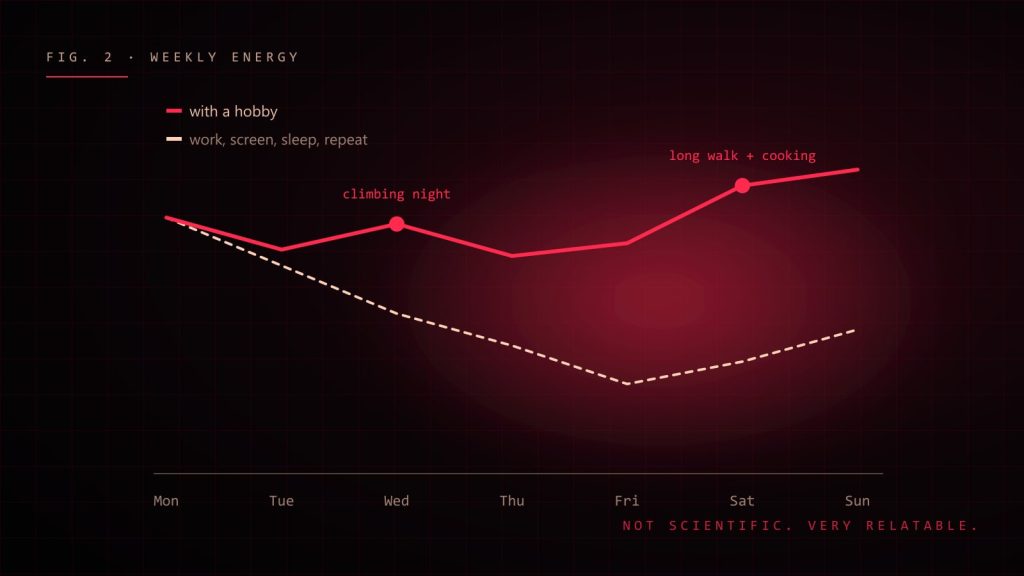
    Weekly energy chart comparing weeks with and without a hobby
    A rough weekly energy chart. Spot the days a hobby saved.

    Warning signs your hobby has become work

    • You made a Jira board for it.
    • You are tracking KPIs for your sourdough.
    • You feel guilty when you skip it.
    • You are planning to “monetise” it before you’ve enjoyed it.

    If you checked more than one box, step away from the spreadsheet.

    Final thought

    You are more than your GitHub contribution graph. The best developers I know are also climbers, cooks, musicians, parents, gamers and terrible-but-happy gardeners. Those lives outside the screen make them calmer, more creative and much more fun to work with.

    So close the laptop. Go find your thing. The bug will still be there tomorrow, and you will probably fix it faster.

  • How to Become a Better Developer, One Embarrassing Commit at a Time

    How to Become a Better Developer, One Embarrassing Commit at a Time

    There is a special feeling every developer knows. You open code you wrote six months ago and think: “Who wrote this garbage?” Then you check the git blame. It was you. It is always you.

    Good news: that feeling means you are getting better. If your old code never embarrasses you, you have probably stopped growing. Here is what actually helped me level up, from WordPress themes and PHP back-ends to React apps and real-time 3D, minus the motivational-poster fluff.

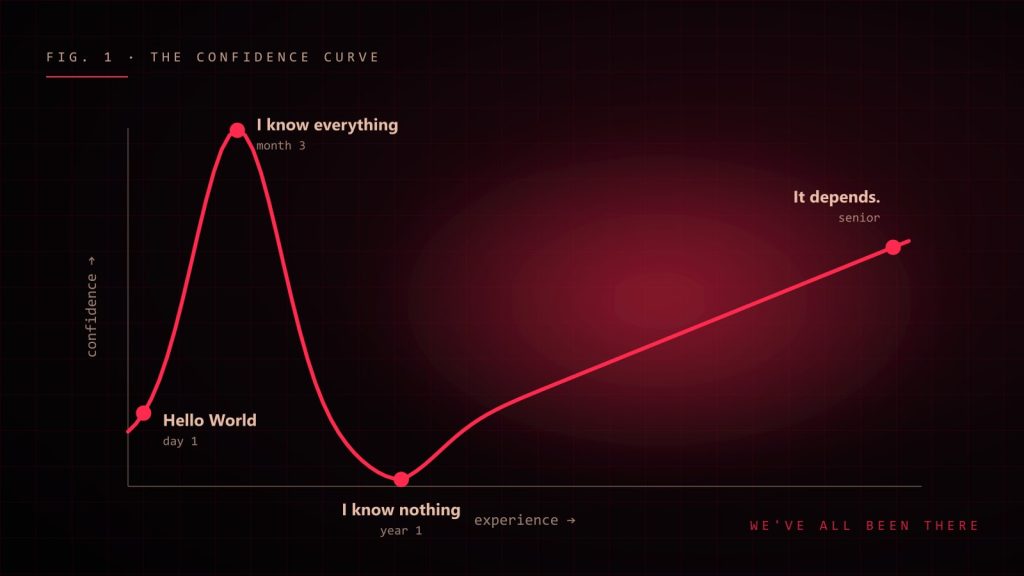
    Developer confidence curve from Hello World to I know everything to I know nothing to It depends
    The developer confidence curve. Most of us visit every point on it at least twice.

    1. Learn the fundamentals, not just the framework

    Frameworks come and go. I have watched jQuery rule the world, then politely leave the room. The things that stayed useful through every trend: how the browser renders a page, how HTTP works, how JavaScript handles async code, how data flows through an app.

    When you understand the fundamentals, a new framework is just new syntax for ideas you already know. When you don’t, every new framework feels like starting from zero.

    2. Read more code than you write

    Writers read books. Developers should read code. Open the source of a library you use every day. Read the pull requests of the best engineer on your team. You will steal (I mean, “learn”) patterns, naming habits and clever ways of handling edge cases that no tutorial teaches.

    3. Build things that are slightly too hard

    Tutorials feel productive, but they are like watching cooking shows: entertaining, educational, and you still can’t make dinner. Real growth happens when you build something just beyond your comfort zone and have to figure it out yourself.

    • Never built a real-time app? Make a tiny chat with WebSockets.
    • Curious about 3D? Put a rotating cube on a page with Three.js, then make it react to the mouse.
    • Only done front-end? Write the API for your own side project.

    You will get stuck. That is the part where the learning happens.

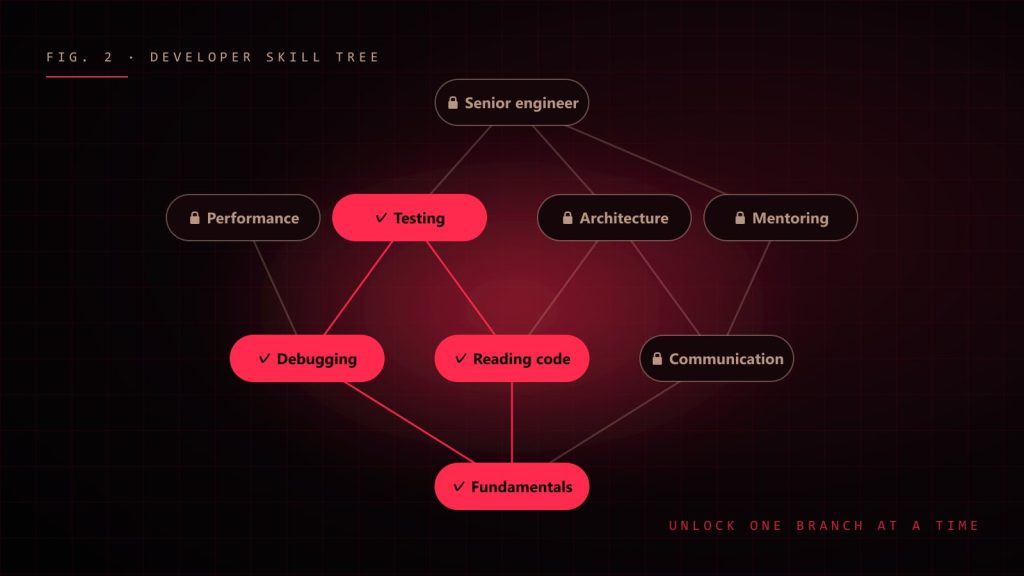
    Developer skill tree with fundamentals, debugging, reading code and testing unlocked
    Pick your next skill like a game skill tree: one branch at a time, with the basics unlocked first.

    4. Get good at debugging

    Debugging is the most underrated developer skill. Bad debugging is changing random things until the error goes away. Good debugging is a calm, boring, scientific process:

    1. Reproduce it. If you can’t make it happen on purpose, you can’t prove you fixed it.
    2. Read the actual error message. All of it. Yes, even the scary part.
    3. Form one hypothesis and test it. Change one thing at a time.
    4. Shrink the problem. Remove code until the bug disappears; the last thing you removed is your suspect.
    5. Write down the fix and the cause. Future you will hit the same bug. Future you deserves notes.

    5. Ask for feedback (and survive it)

    Code review comments can sting. “Why is this 400 lines?” feels personal. It isn’t. Treat every review as a free lesson from someone who spent their time on your growth. Ask senior developers “how would you have done this?” Most of them love answering, and you get years of experience in a ten-minute chat.

    6. Write things down

    Keep a simple “today I learned” file. Write short notes after solving a tricky problem. Explain things in a blog post, even if only five people read it. Explaining something is the fastest way to discover you don’t understand it yet, which is the first step to actually understanding it.

    7. Care about the user, not just the code

    The best developers I know don’t only ask “does it work?” They ask “is it fast on a cheap phone?”, “can someone use it with a keyboard?”, “will this confuse a new user?” Caring about the person on the other side of the screen turns a coder into a product engineer, and product engineers are the ones teams fight to keep.

    8. Protect your energy

    You can’t become a great developer while running on four hours of sleep and pure panic. Take breaks. Go outside. Close the laptop at a reasonable hour. Some of my best solutions arrived in the shower, on a walk or while washing dishes, never while staring harder at the screen.

    A simple weekly plan

    • One hour reading good code or docs.
    • One small experiment with something you don’t know yet.
    • One note about something you learned.
    • One question to someone more experienced.

    It doesn’t sound like much. Do it every week for a year and you won’t recognise your own code. Which, as we established, is exactly the point.

  • How AI Is Changing Programming (and What It Still Can’t Do)

    How AI Is Changing Programming (and What It Still Can’t Do)

    A few years ago, “AI writes code” sounded like science fiction or a sales pitch. Today, an AI assistant suggests the rest of my function before I have finished typing its name. Sometimes it is brilliant. Sometimes it confidently invents an API that has never existed, in a tone so sure of itself that I briefly doubt my own memory.

    So, is AI going to replace programmers? Make us ten times faster? Turn us into prompt typists? After using AI tools every day in real projects, my honest answer is: it changes the job a lot, but not in the way the headlines suggest.

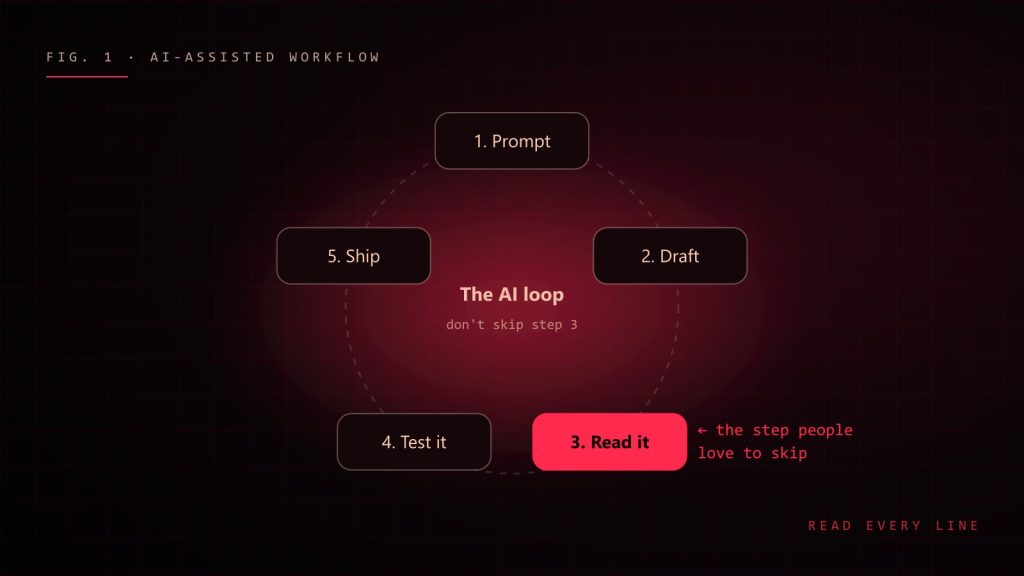
    The AI-assisted workflow loop: prompt, draft, read it, test it, ship
    The AI-assisted loop. The step that matters most is the one people love to skip.

    What AI is genuinely great at

    Let’s give credit where it is due. AI assistants are excellent at:

    • Boilerplate. Form validation, API types, test scaffolding, the fifteenth CRUD endpoint. Things you know how to write but would rather not.
    • Explaining unfamiliar code. “What does this regex do?” used to mean twenty minutes of squinting. Now it is a question.
    • Getting unstuck. A blank page is the hardest part of any task. A rough first draft, even a wrong one, gets your brain moving.
    • Translating between languages and frameworks. “Here is this function in PHP, give me the TypeScript version” is a solid time saver.
    • Rubber ducking that talks back. Explaining a bug to an AI often makes you spot it yourself, just like the classic rubber duck, except this duck has opinions.

    What still needs a human

    AI is a very fast, very well-read intern with no context, no memory of your last architecture meeting and absolutely no fear. That combination is powerful and occasionally terrifying. It struggles with:

    • Understanding the actual problem. It answers the question you asked, not the question you should have asked.
    • Your codebase’s unwritten rules. Why that service is never called directly, why the date field is stored as a string, why nobody touches legacy-utils.js.
    • Trade-offs. It can list options. Choosing the right one for your team, budget and deadline is still your job.
    • Being wrong quietly. When AI is wrong, it is wrong with perfect grammar and great confidence. That is the dangerous part.
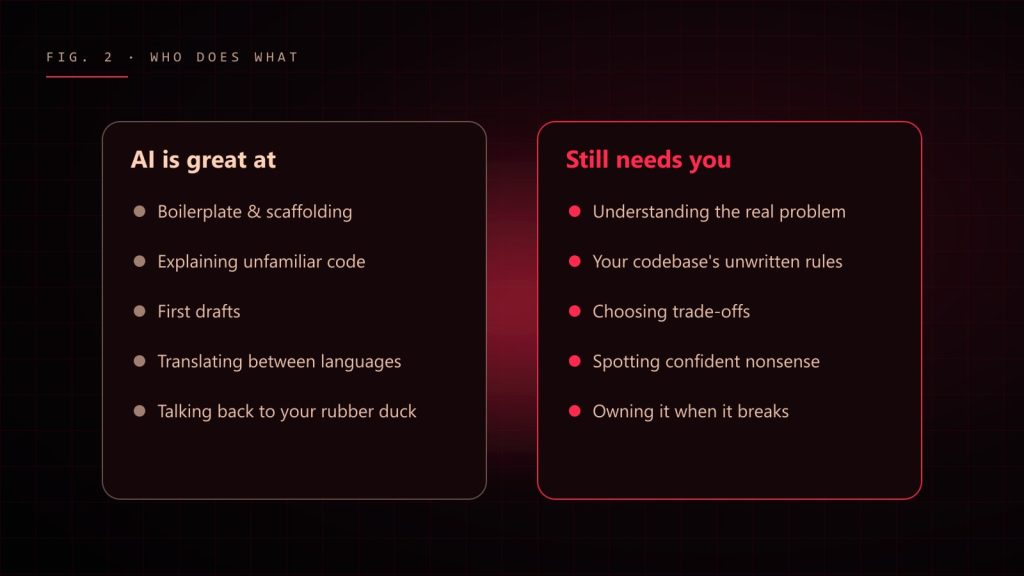
    Two columns: what AI is great at and what still needs a human
    A rough map of where AI helps and where you are still very much needed.

    The skill that matters more now: reading code

    If AI writes more of the first draft, the human job shifts toward reviewing, testing and understanding. You become an editor more than a typist. That means the developers who benefit most are, ironically, the ones who already know their fundamentals well. You cannot spot a subtle bug in generated code if you don’t understand what correct code looks like.

    My rule: never commit code you could not explain to a teammate. If the AI wrote it and you can’t explain why it works, you don’t have a feature. You have a mystery with a deadline.

    How I actually use AI day to day

    1. Give context. Paste the relevant types, the error and what you expected. “Fix my code” gets generic answers; “this hook re-renders on every keystroke, here is the component” gets useful ones.
    2. Ask for options, not answers. “Give me two approaches and their trade-offs” leads to better decisions than “write it”.
    3. Read every line. Especially imports, edge cases and anything touching money, auth or user data.
    4. Test it. Generated code deserves the same tests as hand-written code. Possibly more.
    5. Keep secrets out. Never paste API keys, passwords or private customer data into a prompt.
    Weak prompt:
      "make this faster"
    
    Better prompt:
      "This React list re-renders all 2,000 rows when one item changes.
       Here is the component and the store. Suggest two fixes, explain
       the trade-offs, and don't change the public props."

    Will AI replace developers?

    It will replace some tasks developers do. It already has. Nobody misses hand-writing the same form validation for the hundredth time. But software is not just code; it is understanding people, untangling vague requirements, making trade-offs and taking responsibility when things break at 2 a.m.

    The developers I worry about are not the ones using AI. They are the ones who refuse to learn it, and the ones who use it without understanding what it produces. The sweet spot is in the middle: use AI to go faster, and use your brain to go in the right direction.

    Advice for people starting today

    • Learn the fundamentals properly. They are how you judge what the AI gives you.
    • Use AI to explain things, not just to do things for you.
    • Build real projects. AI can help write code; it cannot give you the experience of shipping and supporting something.
    • Practise reading other people’s code. In the AI era, that is half the job.

    AI did not end programming. It removed some of the boring parts and raised the bar for the thinking parts. Honestly? That’s a pretty good deal. Just double-check the imports.

  • Software Engineering Is Mostly Thinking (and a Little Typing)

    Software Engineering Is Mostly Thinking (and a Little Typing)

    When I tell people I am a software engineer, they picture me typing furiously in a dark room, green text raining down the screen, hacking into something important. The reality is less cinematic. Most days I am staring at a function, holding a coffee that went cold an hour ago, whispering “but why would it do that?”

    Software engineering is not mostly about typing. It is about thinking, reading, communicating and making trade-offs, with a little typing sprinkled on top. After more than ten years of building things for the web, from WordPress plugins to real-time 3D configurators, here is what I wish someone had told me on day one.

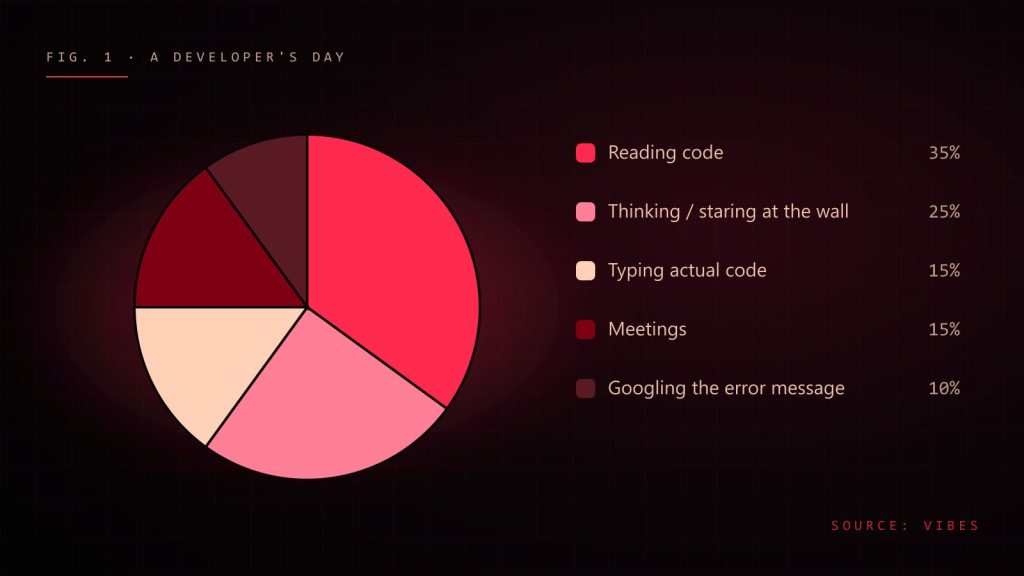
    Pie chart of a developer day: reading code 35%, thinking 25%, typing 15%, meetings 15%, googling errors 10%
    An honest breakdown of a developer's day. Your numbers may vary, especially the meetings slice.

    Programming vs. software engineering

    Programming is making the computer do something. Software engineering is making the computer do something for years, while other people change it, the requirements change, the framework releases a new major version and someone in marketing asks if it can “just also do this one small thing”.

    A good rule of thumb: programming is what you do alone; engineering is what you do with time and other people. The moment your code has to survive a colleague, a deadline or next year’s version of you, you are doing engineering.

    You read code far more than you write it

    Every line you write will be read many more times than it was written: by reviewers, by teammates fixing bugs at 6 p.m. on a Friday, and by future you, who will have no memory of writing it and will be personally offended by it.

    So optimise for the reader:

    • Name things like you mean it. data2, tempFinal and handleStuff are cries for help. unpaidInvoices and retryWithBackoff are documentation.
    • Keep functions small enough to fit in your head. If you need to scroll to understand it, your teammates need a map.
    • Comment the “why”, not the “what”. The code already says what it does. Tell me why it does it in this weird way, so I don’t “fix” it and break production.
    // Bad: tells me what I can already read.
    // Add 1 to retries
    retries += 1;
    
    // Good: tells me what the code can't.
    // The payment provider rate-limits bursts, so we back off
    // instead of retrying immediately (see incident 2024-11).
    await sleep(2 ** retries * 250);

    Simple beats clever (every single time)

    Clever code feels amazing to write. It is a little poem only you understand. Unfortunately, it is also a little trap only you can get out of. The best engineers I have worked with write code that looks almost boring. That is the point. Boring code is easy to read, easy to test and easy to delete.

    Before you add an abstraction, ask: “Do I have three real cases for this, or am I building a cathedral for one tent?” Duplicating two small things is often cheaper than inventing the wrong abstraction and living with it for two years.

    Bugs get more expensive the longer they live

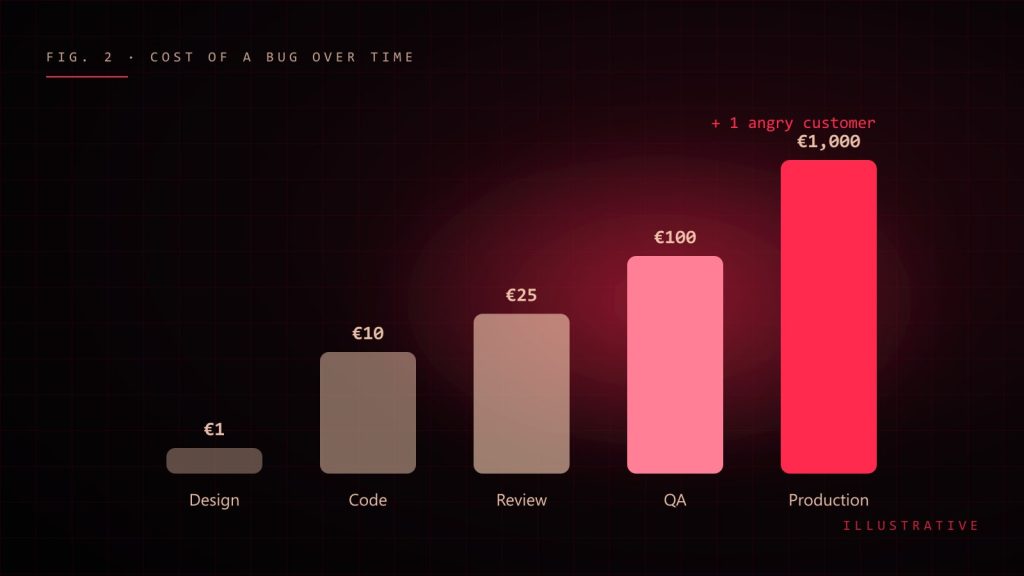
    A misunderstanding caught while sketching the solution costs a conversation. The same misunderstanding caught in production costs a hotfix, a postmortem, an apology email and possibly your weekend.

    Bar chart: the cost of a bug grows from design to production
    The life cycle of a bug's price tag. Illustrative, but anyone who has done a Friday hotfix will tell you it's not far off.

    That is why engineering habits that feel slow are actually fast:

    • Ask questions before you code. Five minutes of “what should happen when the list is empty?” saves five hours later.
    • Write tests for the scary parts. Not everything needs a test, but money, permissions and anything with dates absolutely does. Dates are cursed. Respect the curse.
    • Review code like a teammate, not a judge. The goal is a better product, not a scoreboard of who found the most typos.

    Every decision is a trade-off

    There is no “best” framework, database or architecture. There is only “best for this team, this problem and this deadline”. Junior engineers ask “what is the right answer?” Senior engineers answer “it depends”, and then, crucially, explain what it depends on.

    When you make a decision, write down:

    1. The problem you were solving.
    2. The options you considered.
    3. Why you picked this one, and what you gave up.

    Three short paragraphs. Future you will send present you a thank-you card.

    Communication is part of the job

    I used to think the “soft” skills were optional extras. Then I watched a technically perfect feature fail because nobody explained how it worked, and a slightly messy one succeed because the developer kept everyone in the loop. Writing clear pull request descriptions, giving honest estimates and saying “I’m stuck” early are engineering skills. They just don’t compile.

    Ship, learn, repeat

    Perfect software does not exist. Software that is in users’ hands, teaching you something, does. Ship small pieces, measure what happens, improve. A good engineer is not someone who never makes mistakes; it is someone who makes small mistakes quickly and big mistakes rarely.

    The short version

    • Write for the reader, especially future you.
    • Choose boring, simple solutions until you can’t.
    • Catch bugs early: questions, tests and kind reviews.
    • Every choice is a trade-off. Write it down.
    • Talk to humans. They are part of the system too.

    And reheat your coffee. Cold coffee has never fixed a bug, although I have tested this hypothesis extensively.

  • Shipping Three.js on the Web Without Melting Laptops

    Shipping Three.js on the Web Without Melting Laptops

    A Three.js scene that runs at 120 fps on a desktop GPU can drop to 20 fps on a three-year-old laptop and turn a phone into a hand warmer. When the 3D is the first thing a recruiter or customer sees, that is not a small bug: it is the first impression. Here is the playbook I use to keep WebGL scenes smooth across very different devices.

    Measure before you optimise

    Guessing is the most expensive optimisation technique. Before changing anything, find out where the frame time actually goes:

    • Draw calls: renderer.info.render.calls tells you how many times the CPU talked to the GPU last frame. Hundreds of calls is usually the problem on low-end machines.
    • Pixels: fill rate grows with the square of the device pixel ratio. A 1440p screen at DPR 2 is over 14 million pixels per frame.
    • Main thread: the Performance panel in Chrome DevTools shows whether a hitch is JavaScript (long tasks), shader compilation, or the GPU.

    One draw call beats a thousand

    The biggest win is almost always fewer draw calls. A particle field built from 24,000 separate meshes is unusable; the same field as a single THREE.Points with a custom shader is cheap. When you need many copies of the same geometry, reach for InstancedMesh. When shapes differ, merge static geometry with BufferGeometryUtils.mergeGeometries.

    Animation can live on the GPU too. Instead of updating thousands of positions in JavaScript every frame, store several target shapes as attributes and blend between them in the vertex shader with a few uniforms:

    attribute vec3 aGalaxy;
    attribute vec3 aHelix;
    uniform float uMix;
    
    void main() {
      vec3 pos = mix(aGalaxy, aHelix, uMix);
      gl_Position = projectionMatrix * modelViewMatrix * vec4(pos, 1.0);
      gl_PointSize = 2.0;
    }

    Now a morph between two shapes costs one uniform update per frame, not 24,000 attribute writes.

    Cap the pixel ratio

    Rendering at the full device pixel ratio looks crisp, but most scenes, especially soft particles and glows, are indistinguishable at 1.5× and far cheaper. In React Three Fiber this is one prop:

    <Canvas dpr={[1, 1.5]} gl={{ antialias: false, powerPreference: "high-performance" }}>
      <Scene />
    </Canvas>

    Turning off antialiasing is another quiet win for point clouds and additive effects, where jagged edges simply do not exist.

    Pick a quality tier per device

    There is no single “right” particle count. I pick a tier on load from a few cheap hints, then let the scene adapt:

    type Tier = "low" | "mid" | "high";
    
    function detectTier(): Tier {
      const cores = navigator.hardwareConcurrency ?? 4;
      const memory = (navigator as { deviceMemory?: number }).deviceMemory ?? 8;
      const small = window.innerWidth < 768;
    
      if (cores <= 2 || memory <= 2) return "low";
      if (small || cores <= 4) return "mid";
      return "high";
    }

    Each tier maps to a particle count, a DPR cap and whether heavy assets such as a large GLB model load at all. The GPU name from WEBGL_debug_renderer_info is a useful extra hint for spotting software renderers and weak integrated chips.

    Adapt at runtime

    Hints are guesses, so I back them with real measurements. Every couple of seconds the render loop checks the average frame rate. If it stays below a threshold, it steps quality down: fewer particles via geometry.setDrawRange, and a lower DPR. Two details matter:

    • Shuffle the draw order once with an index buffer, so trimming the draw range thins every shape evenly instead of deleting whole sections.
    • Ignore frames where the tab is hidden or a single frame took a quarter of a second. Those are hitches, not steady load.

    Hide shader compilation

    The first time a material renders, its shaders compile, and on Windows that can block for well over 100 ms. If that first render happens mid-scroll, users feel a stutter. Render every canvas once while the preloader is still visible (for example with frameloop="demand", which draws a single frame on mount) so compilation is paid for up front.

    Do not forget the DOM

    WebGL is rarely the only cost on the page. Large elements with backdrop-filter: blur() that move or tilt every frame can be more expensive than the 3D scene behind them. Pause those effects during big transitions, avoid permanent will-change on huge sections, and keep full-screen blend-mode overlays to a minimum on weak devices.

    Checklist

    • Count draw calls and pixels before optimising.
    • Batch: Points, InstancedMesh, merged geometry.
    • Move per-vertex animation into shaders.
    • Cap DPR and skip antialiasing where it does not show.
    • Choose a tier on load, then adapt to measured FPS.
    • Compile shaders behind the preloader.
    • Treat CSS blur and overlays as part of the frame budget.

    None of these tricks are exotic, but together they are the difference between a demo that impresses on your machine and a site that impresses on everyone’s.

  • Theming an Entire Site at Runtime with CSS Custom Properties

    Theming an Entire Site at Runtime with CSS Custom Properties

    Letting visitors switch the accent colour of a whole site sounds like a small feature. In practice it touches every button, border, glow, gradient and chart. If those colours are hard-coded, a “theme switcher” quickly turns into a find-and-replace nightmare. CSS custom properties make it manageable, and with one modern trick, even animatable.

    Start from a few base tokens

    The mistake I see most often is defining dozens of independent colour variables. Every new palette then needs dozens of new values. Instead, define a tiny set of base stops and derive everything else from them with color-mix():

    :root {
      --accent: #ff2a4d;        /* hot */
      --accent-deep: #800013;   /* shadow */
      --accent-light: #ffd2b8;  /* highlight */
    
      --accent-soft: color-mix(in oklab, var(--accent) 40%, white);
      --surface: color-mix(in oklab, var(--accent-deep) 7%, #050505);
      --fg: color-mix(in oklab, var(--accent-light) 22%, white);
    }

    A new palette is now three hex values. Mixing in the oklab colour space keeps the derived tints perceptually even, so a blue theme looks as balanced as a red one.

    Expose tokens to your utility classes

    With Tailwind CSS v4, an inline theme block maps tokens to utilities without hard-coding any colour:

    @theme inline {
      --color-accent: var(--accent);
      --color-surface: var(--surface);
      --color-fg: var(--fg);
    }

    Now bg-accent/15, border-accent/40 and text-fg all follow the live palette, and opacity modifiers still work because Tailwind generates them with color-mix() too. Arbitrary values can reference tokens directly: shadow-[0_0_24px_var(--accent)].

    Make the change animate

    By default, custom properties are just strings, so the browser cannot interpolate them: a palette change snaps instantly. Registering the base tokens with @property gives them a type, and typed properties can transition:

    @property --accent {
      syntax: "<color>";
      inherits: true;
      initial-value: #ff2a4d;
    }
    
    :root {
      transition: --accent 0.9s cubic-bezier(0.22, 1, 0.36, 1);
    }

    Because every derived colour is mixed from the registered ones, the whole interface morphs smoothly when JavaScript sets a new value:

    document.documentElement.style.setProperty("--accent", "#a64dff");

    Remember the choice without a flash

    Saving the palette to localStorage is easy. Applying it without a flash of the default colour is the part people miss. If you wait for React to hydrate, users see red for a moment before their chosen colour appears. A tiny inline script in the document head runs before the first paint:

    <script>
      try {
        var p = { violet: ["#3b0a85", "#a64dff", "#f0dcff"] }[localStorage.getItem("palette")];
        if (p) {
          var s = document.documentElement.style;
          s.setProperty("--accent-deep", p[0]);
          s.setProperty("--accent", p[1]);
          s.setProperty("--accent-light", p[2]);
        }
      } catch (e) {}
    </script>

    Wrap it in try/catch: storage can be blocked in private windows, and a theme script must never break the page. Because the script edits the <html> element, add suppressHydrationWarning to it in React.

    Do not forget non-CSS colours

    Canvas and WebGL cannot read CSS variables. Keep the palettes in one shared module that both the CSS sync and the render loop import, and ease uniforms toward the new colours each frame. That way the particles, charts and buttons all change together.

    Migrating an existing codebase

    If your components are full of literal hex codes, a careful script gets you most of the way: map each literal to a token, rewrite bg-[#ff2a4d] to bg-accent, and convert rgba(255,42,77,0.4) to color-mix(in oklab, var(--accent) 40%, transparent). Then review the leftovers by hand. SVG presentation attributes and canvas fill styles are the usual exceptions, since they need a class or a JavaScript value instead.

    Takeaways

    • Few base tokens, everything else derived with color-mix().
    • Map tokens into your utility framework instead of hard-coding colours.
    • Register base tokens with @property to make theme changes animate.
    • Apply the saved palette in a head script to avoid a flash.
    • Share palette data with canvas and WebGL code.
  • Caching in the Next.js App Router: Which Layer Is Answering?

    Caching in the Next.js App Router: Which Layer Is Answering?

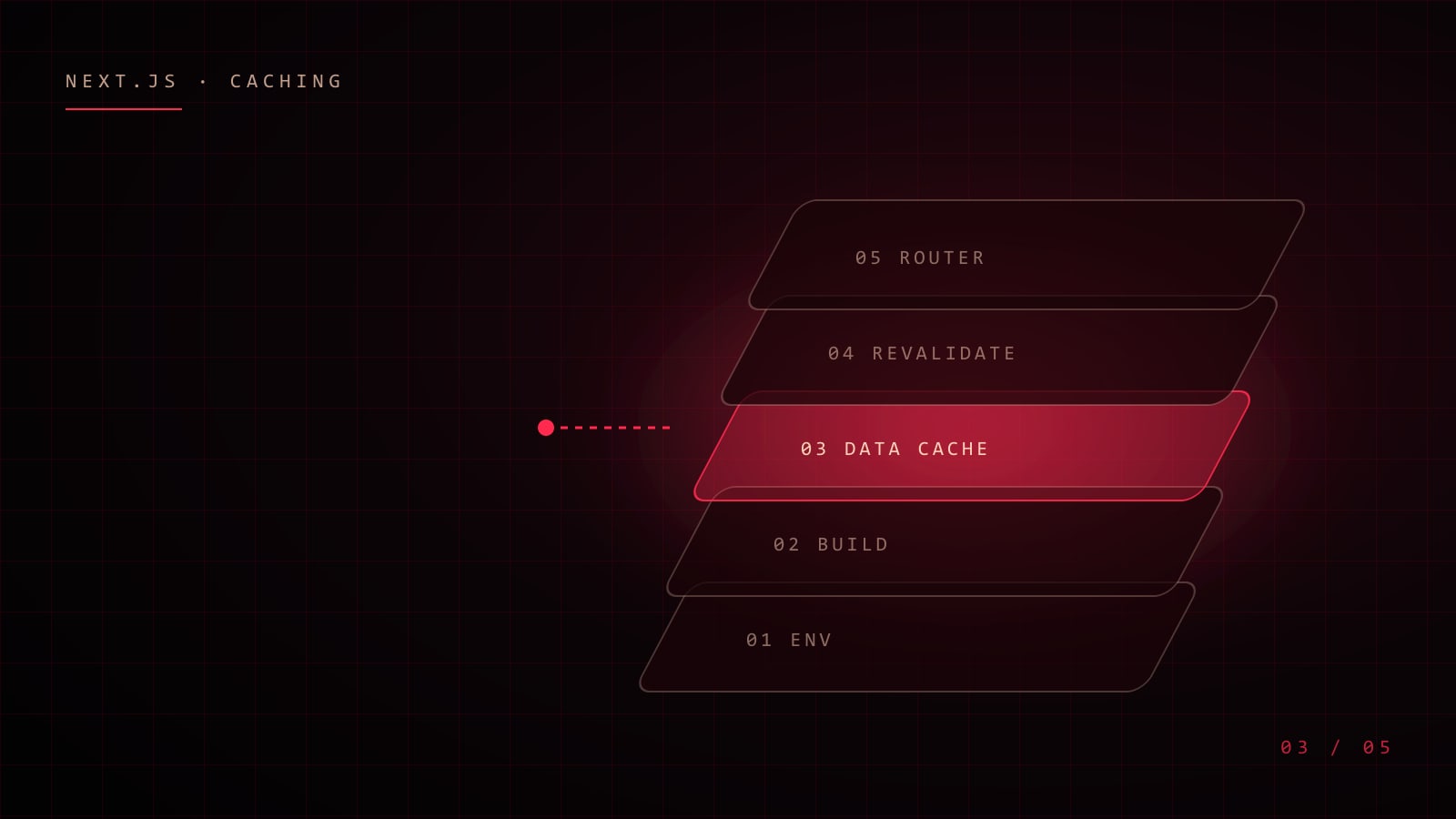
    “I changed the API URL and the site still shows the old posts.” If you have built a Next.js site on top of a headless CMS, you have probably said something like this. The App Router caches aggressively and in several layers, and most confusing bugs come from not knowing which layer is answering. This is the mental model I use.

    Layer 1: environment variables are read at start or build time

    Values in .env.local are loaded when the dev server starts or when you build. Editing the file while the server runs changes nothing until you restart. Also check which folder the server runs from: each project folder (and each git worktree) reads its own env file.

    Anything prefixed NEXT_PUBLIC_ is inlined into the browser bundle at build time, so it is both public and frozen. Secrets such as API tokens must never use that prefix.

    Layer 2: pages rendered at build time

    Routes that can be pre-rendered are generated during next build. With generateStaticParams, every slug you return becomes static HTML. That makes pages instant, but it also means:

    • The CMS must be reachable from the build machine.
    • Content changes only appear after revalidation or a rebuild.
    • Config read at build time, such as allowed image hosts in next.config.js, needs a rebuild to change.

    Layer 3: the data cache

    For data that does not come from a plain fetch, such as an axios client or an SDK, unstable_cache wraps a function and stores its result on the server:

    import { unstable_cache } from "next/cache";
    
    export const getPosts = unstable_cache(
      async () => fetchPostsFromCms(),
      ["cms-posts", API_BASE, String(CATEGORY_ID)],
      { revalidate: 120 }
    );

    Two parts deserve attention:

    • Key parts. The array is part of the cache key. Include everything that changes the result, such as the API base URL and category ID. If you leave the URL out, switching environments can keep serving the old environment’s data.
    • Revalidate. After the window expires, the next request still gets the cached value while a fresh one is fetched in the background. If that fetch fails, the stale value keeps being served, which is usually what you want for a blog, but can look like “nothing changed”.

    Newer Next.js versions also offer the "use cache" directive with cache life profiles. The concepts are the same: a key, a lifetime and a way to invalidate.

    Layer 4: on-demand invalidation

    Time-based revalidation is a safety net, not a publishing workflow. For instant updates, tag cached data and invalidate the tag when the CMS changes:

    // app/api/revalidate/route.ts
    import { revalidateTag } from "next/cache";
    
    export async function POST(request: Request) {
      const secret = request.headers.get("x-revalidate-secret");
      if (secret !== process.env.REVALIDATE_SECRET) {
        return new Response("Unauthorized", { status: 401 });
      }
      revalidateTag("cms-posts");
      return Response.json({ revalidated: true });
    }

    Point a CMS webhook (for WordPress, a small plugin or a save_post hook) at this route, and published posts show up within seconds without waiting for the timer.

    Layer 5: the browser and the router

    The client-side router keeps recently visited segments in memory, so pressing back can show what you saw a minute ago. A hard refresh rules this layer out quickly when debugging.

    A debugging checklist

    1. Restart the dev server and confirm it runs from the folder whose env file you edited.
    2. Check that the variable is read server-side and not inlined with NEXT_PUBLIC_.
    3. Confirm the cache key includes the values you changed.
    4. Look at the server logs for failed revalidation fetches.
    5. For production, ask whether the page was built statically and needs revalidation or a rebuild.

    Caching is what makes a headless setup feel fast. Knowing which layer is answering is what makes it feel predictable.

  • Motion with Manners: Animations That Respect Users

    Motion with Manners: Animations That Respect Users

    Motion is one of the best tools a frontend engineer has. It explains where things came from, confirms that an action worked and gives a product personality. It is also one of the easiest ways to make a site uncomfortable, slow or even physically unpleasant for some people. Good motion is not just smooth; it is considerate.

    Respect the system setting

    Every major operating system lets users ask for reduced motion, and browsers expose it as a media query. People enable it for many reasons, including vestibular disorders, migraines and simple preference. Honour it everywhere, not just in CSS:

    @media (prefers-reduced-motion: reduce) {
      *,
      *::before,
      *::after {
        animation-duration: 0.01ms !important;
        animation-iteration-count: 1 !important;
        transition-duration: 0.01ms !important;
        scroll-behavior: auto !important;
      }
    }

    In React, Framer Motion’s useReducedMotion() lets components choose a calmer variant instead of disabling animation entirely:

    const reduced = useReducedMotion();
    
    <motion.div
      initial={reduced ? false : { opacity: 0, y: 40 }}
      animate={{ opacity: 1, y: 0 }}
    />

    “Reduced” does not have to mean “none”. Fades and colour changes are usually fine; large movement, parallax, zooming and spinning are what cause trouble.

    Give motion a job

    Before adding an animation, ask what it communicates. Useful motion tends to fall into a few categories:

    • Orientation: a panel slides from the button that opened it.
    • Feedback: a button compresses on press; a toast confirms a send.
    • Continuity: a card expands into the page it links to.
    • Delight: a small flourish on a key moment, used sparingly.

    If an animation fits none of these, it is decoration, and decoration has to earn its cost.

    Keep it fast and interruptible

    Most interface transitions feel right between 150 and 400 ms. Longer is fine for rare, dramatic moments, but never for something users trigger dozens of times. Equally important: animations must never block input. If a user clicks again mid-transition, respond immediately rather than queuing behind the animation.

    Prefer animating transform and opacity. They can be handled by the compositor, while animating width, top or box-shadow forces layout or paint every frame.

    Be careful with scroll

    Scroll-driven effects are popular, and scroll hijacking is where motion most often goes wrong. If you take over scrolling, for example to snap between full-screen sections:

    • Keep one wheel gesture equal to one step, and swallow trackpad momentum so a flick does not skip three sections.
    • Leave touch devices on native scrolling.
    • Keep keyboard navigation working: arrows, Page Up/Down, Space, Home and End.
    • Never trap focus or prevent users from reaching content.
    • Make sure scroll-linked reveals finish even if the page stops early, for example with a timed fallback once the element is in view.

    Never hide content behind animation

    Text that starts invisible and only appears when an animation runs is fragile. If JavaScript fails, the observer never fires or the user prints the page, the content is gone. Start from a readable state where possible, and always provide a fallback so animated elements end up visible.

    Test like a user

    • Turn on reduced motion in your OS and use the site for five minutes.
    • Navigate with only the keyboard.
    • Throttle the CPU 4× in DevTools and check that transitions stay smooth.
    • Try a trackpad and a mouse wheel; they produce very different event streams.

    Summary

    Great motion feels inevitable: it explains, confirms and delights without getting in the way. Respect the user’s settings, give every animation a purpose, keep it fast and interruptible, and make sure nothing important depends on it.

  • Frontend Architecture That Survives the Second Year

    Frontend Architecture That Survives the Second Year

    Most frontend codebases are pleasant for the first few months. Then the team grows, features pile up, and suddenly a small change touches nine files and breaks a page nobody was looking at. The decisions that prevent that are rarely about frameworks. They are about boundaries, data flow and habits.

    Organise by feature, not by file type

    A components/ folder with two hundred files, a hooks/ folder and a utils/ folder tells you what things are, not what they are for. Grouping by feature keeps related code together and makes ownership obvious:

    features/
      checkout/
        checkout-page.tsx
        payment-form.tsx
        use-cart-total.ts
        checkout.api.ts
        checkout.test.tsx
      profile/
        ...
    shared/
      ui/        # buttons, inputs, dialogs
      lib/       # formatting, dates, fetch client

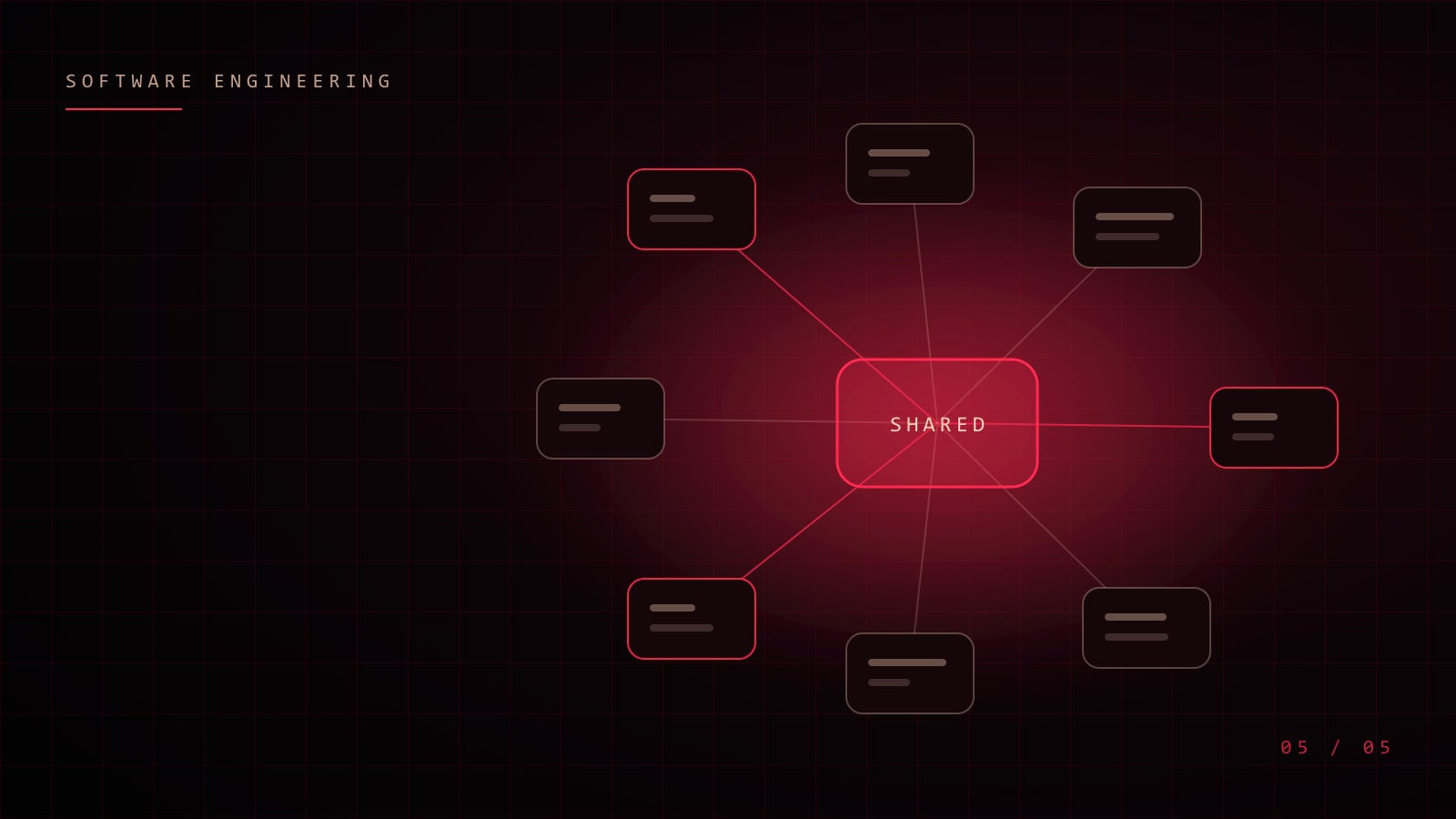
    A simple rule keeps this healthy: features may import from shared, but not from each other. When two features need the same thing, promote it to shared deliberately.

    Keep state close to where it is used

    Global state is convenient on day one and expensive on day three hundred. Ask where each piece of state really belongs:

    • Server data belongs in a data layer with caching, such as React Query, SWR or server components, not copied into a global store.
    • URL state such as filters, tabs and pagination belongs in the URL, so it survives refreshes and can be shared.
    • Local UI state such as an open dropdown belongs in the component.
    • Truly global client state, like the current theme or a 3D scene’s settings, is the small remainder that justifies a store.

    When high-frequency values, such as pointer position in a render loop, change every frame, keep them out of React state entirely and read them where they are needed.

    Make components boring to use

    A good shared component has a small, predictable API. Prefer composition to configuration: a Card with slots ages better than a Card with twenty boolean props.

    // Hard to extend
    <Card title="Plan" showBadge badgeText="New" footerAlign="right" />
    
    // Easy to extend
    <Card>
      <Card.Header>Plan <Badge>New</Badge></Card.Header>
      <Card.Footer className="justify-end">...</Card.Footer>
    </Card>

    Let types document the edges

    TypeScript pays off most at boundaries: API responses, component props and shared utilities. Validate data where it enters the app, then trust the types inside. A runtime schema at the API boundary catches backend changes before they become blank screens:

    import { z } from "zod";
    
    const Post = z.object({
      id: z.number(),
      title: z.string(),
      publishedAt: z.string().datetime(),
    });
    
    export type Post = z.infer<typeof Post>;
    
    export async function getPost(id: number): Promise<Post> {
      const response = await fetch(`/api/posts/${id}`);
      return Post.parse(await response.json());
    }

    Test behaviour, not implementation

    Tests that assert on internal state break every refactor and catch few real bugs. Tests that act like a user (type into the field, click the button, expect the message) survive refactors and protect what matters. A practical mix:

    • Unit tests for pure logic: pricing, formatting, reducers.
    • Component tests with Testing Library for important interactions.
    • A handful of end-to-end tests for the flows that make money or keep users safe.

    Automate the arguments away

    Formatting, import order and common mistakes should never come up in code review. A formatter, a strict linter and type checks in CI free reviewers to discuss design and behaviour. Add a performance budget too: a bundle-size check on pull requests catches the accidental 300 KB dependency before it ships.

    Write down the decisions

    The hardest knowledge to recover is why something was built a certain way. A short decision record (context, options, choice and consequences) takes ten minutes and saves hours when someone later wonders whether that odd pattern is safe to remove.

    In short

    • Group by feature; keep cross-feature imports out.
    • Put state where it belongs: server, URL, component, then store.
    • Design components for composition.
    • Validate at the edges, trust types inside.
    • Test what users do.
    • Automate style; document decisions.

    Architecture is not about predicting the future. It is about making the next change easy, and the one after that.